Your Last Copy-Paste: Anatomy of an AI-Enabled Workflow
If you’ve spent any serious time doing knowledge work with web-based AI (copying an email out of Gmail to paste into ChatGPT, moving a Google Doc into Claude so it can “help me revise this,” screenshotting a spreadsheet because the AI can’t read it), you’ve run into the wall this post is about.
The wall isn’t that the AI can’t help. Today’s models are remarkable. The wall is copy-paste. Every meaningful task has you shuttling content between tabs, losing formatting, re-establishing context, and watching the agent’s memory drop the thread.
There are two unlocks. The first is trivial to set up and pays off immediately. The second takes more effort but is what changes how you actually work.
Unlock 1: Connectors are trivial to setup and powerful. Start here now.
If you’re using Claude and you haven’t turned on connectors yet, stop reading and go do that. It is the cheapest, highest-return thing you can do right now.
A connector is a first-party integration Claude provides between itself and a service you already use. Today Claude has connectors for Gmail, Google Calendar, Google Drive, Slack, and Microsoft 365 (for work/school accounts). Each one is a few clicks to enable and a sign-in to authorize.
Once they’re on, your agent can do things like:
- “Find the email thread with Sarah about the budget and summarize where we landed.”
- “What’s on my calendar tomorrow, and what should I be prepared for?”
- “Search my Drive for that product strategy draft from last month and pull the key points.”
- “What’s been discussed in the #project-falcon Slack channel this week?”
This alone replaces a huge amount of the copy-paste friction. You stop manually piping content into the chat. The agent goes and gets it.
If you do nothing else after reading this, turn on connectors. It’s that much of a quality-of-life improvement.
Unlock 2: An IDE plus locally synced files
Connectors solve “the agent needs to read my stuff.” They don’t solve “the agent and I need to work on the same draft together.”
Real knowledge work is almost always iterative. Draft an email, read it back, edit it, ask for alternative openings, merge the good bits, send. Write a strategy doc, revise after a stakeholder’s comments, update with new data, format for the board. In each of these, the AI isn’t a one-shot oracle. It’s a collaborator. You want a shared artifact that both of you can read and modify.
The browser can’t give you that. The agent writes a response in chat; you copy it out to edit; your edits are now invisible to the agent; you paste back a new version and ask for another pass. The loop is slow and leaky.
Moving the agent into an IDE with locally synced files fixes it.
The architecture
Here’s my recommended setup:
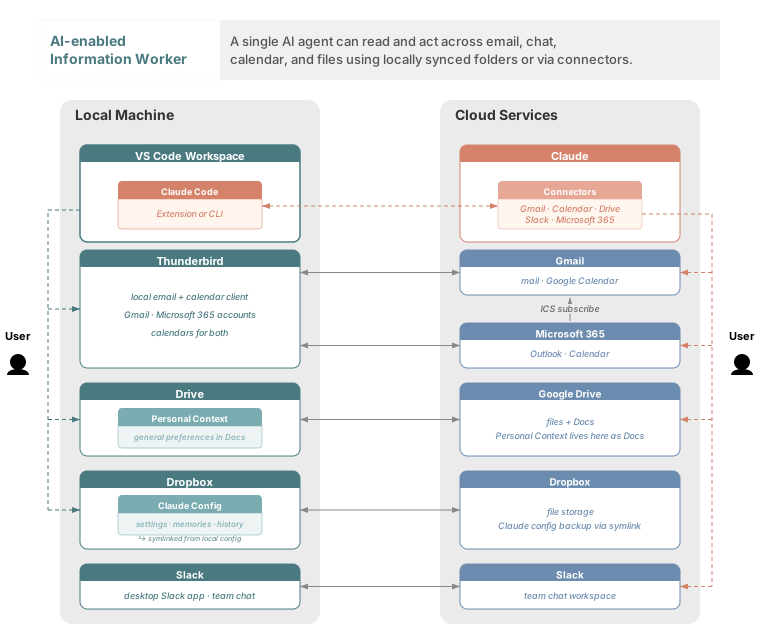
The hub is VS Code with the Claude Code extension installed. Underneath VS Code are your local surfaces: Thunderbird for email (configured with your Gmail and Microsoft 365 accounts), Google Drive and Dropbox syncing your cloud files locally, and Slack running as its usual desktop app. Each of those local folders can be added as a “workspace root” in VS Code, which makes them visible to the agent.
On the right, the same cloud services, reached both through sync (bidirectional arrows in the middle) and through the Claude connectors we just talked about.
Two paths, one agent. Gmail exists in two places: locally through Thunderbird, and via the Gmail connector. The agent picks the right tool for the task. Connectors are great for semantic queries (“find me the thread where…”). Local files are great for co-editing (“let’s work on this draft”).
The diagram also shows two pieces I’m not going deep on here: Personal Context (a Google Doc that acts like a briefing for the agent about your role and work) and Claude Config (your agent’s memories, custom commands, and chat history, locally owned and backed up to Dropbox via symlink). Both are worth posts of their own. For now, just know the agent has a persistent sense of you and your work built up over time.
What this looks like in practice
Two scenarios that show how the pieces work together.
Scenario 1: Drafting an email.
Imagine a team lead who has been asked to write a recommendation letter for a former direct report. They ask the agent to pull the relevant context from three places at once: past email threads with that person (via the Gmail connector), the Google Drive files from a project they worked on together (via the Drive connector), and a quick web search of the person’s LinkedIn profile to pick up anything new they’ve done since. The agent summarizes what it found so the team lead can confirm it’s drawing from the right stuff.
Then they ask it to draft the letter to a local file. The file opens in VS Code. They rewrite the opening, trim a paragraph that sounds too formal, and add a specific memory the agent didn’t have. They ask the agent to revise based on those edits. It re-reads the file, keeps the changes, improves the flow around them. Two or three cycles and the letter is where they want it.
When the draft is done, they copy it into Thunderbird and send. (Claude’s Gmail connector can read email but not send; sending is still a deliberate human action, which is how most people will prefer it.)
Zero copy-paste during the collaboration. The iteration happens on a single file both of them can see.
Scenario 2: Collaborating on a strategy document.
Imagine a marketing manager starting a Q3 campaign strategy doc. They create a new file in their Drive-synced folder, strategy-q3.md. Markdown, because it’s easy to diff, easy to read, and VS Code has a built-in preview.
A note on Markdown. If “Markdown” is a new word, don’t let it scare you. It’s a way of writing formatted text using plain punctuation like
**bold**,*italic*,# Heading,- bullet. No menus, no toolbars. It’s human-readable, machine-readable, and shows up everywhere: GitHub, Slack, Reddit, Notion, Discord. Most agents are fluent in it by default, which makes it the easiest format to collaborate with an agent on. A small lift to learn, with an outsized long-term payoff, and the subject of a future post.
The agent drafts a first outline. They open the markdown preview side-by-side with the source. They rearrange sections, flag spots that need data they’ll fill in, and ask the agent to expand the risk section based on context from their Personal Context doc and a few relevant Slack discussions (pulled via the Slack connector).
They iterate. The agent writes; they edit; the preview updates live; the agent reads the edits and adjusts. When the document is where they want it, they go to Google Drive’s web interface, right-click the .md file, and open it with Google Docs. Drive converts it to a Google Doc, formatting intact, and from there it can be exported to .docx, PDF, or shared with collaborators who expect Google Docs.
The heavy thinking happened in VS Code with the agent. The distribution happened in Drive. Neither side had to do the other’s job.
This is the bigger shift worth naming. For the last two decades, the value of most SaaS tools lived in their UI: the menus, the buttons, the workflows you learned to navigate. AI changes that. Everything becomes semantic. You ask for what you want instead of clicking to where it lives. What happened in the scenario above isn’t really about picking new tools. It’s about getting your data out of the UIs it used to live in and into an agent’s context as easily as possible. The apps you used to use start to feel less like destinations and more like data sources, and the new skill isn’t mastering each tool’s interface. It’s getting fluent at working alongside an AI that can navigate all of them for you.
Setup and learning curve: embrace both
Setting this up has moving parts: install a few apps, turn on some connectors, configure email. After that, there’s a real learning curve as you get comfortable working with files alongside an agent instead of chatting with one.
Here’s the reframe worth holding onto: in the AI era, continuous learning isn’t an optional extra. It’s the shape of the work. The tools evolve, the models improve, and new patterns emerge faster than any single training course keeps up with. The good news is you don’t have to learn alone. Your AI is your learning partner, and that starts right now.
In that spirit, here’s your last “copy and paste to AI” prompt. Paste it into ChatGPT, the Claude web app, Gemini, or whatever assistant you’re using today, and it will walk you through the setup step by step, at your pace, confirming each piece as you go. Once you’re through it, you’ll be inside the new workflow and you won’t need to copy-paste a prompt again.
I just read this post about setting up an AI-enabled workspace for
information workers:

https://strand-consulting.com/work/ai-enabled-information-worker/

Read the post, study the architecture diagram, and help me set this
up on my [Mac / Windows] computer. Walk me through one step at a
time. Ask me what to do first, wait for me to confirm it's done,
then move on. I'm not very technical, so give me concrete instructions
and tell me what to look for to verify each step worked.
One thing worth knowing once you’re in VS Code: it’s free, runs on Mac and Windows, and has one of the largest user communities, documentation sets, and plugin ecosystems of any piece of software. It’s built for software developers, and you’ll be using a small, well-defined subset of it. Much of the early learning is about figuring out what to ignore. At first it’ll feel a bit busy. Over time you’ll stop noticing the panels and features you don’t use. Once the collaboration workflow clicks, you’ll almost certainly never want to go back.
The deeper curve is less about tools and more about habit. The muscle memory of “open browser, open chat, type question, read answer” runs deep. The new pattern, “open VS Code, ask agent, edit the file, iterate,” takes a few sessions of real work to start feeling natural. The moment it clicks is usually around your third or fourth serious task, when you notice the agent picking up on a detail you didn’t have to re-explain because it’s in your Personal Context doc, or when you finish iterating on something in VS Code and realize you haven’t copy-pasted a single thing.
That’s the unlock. The friction you used to pay at every turn is just gone, and what you get back is real collaboration with a capable agent on the same artifact.
About this post
This post was written using the setup it describes. Claude and I spent an afternoon iterating on the architecture diagram first, going back and forth on card layouts, connector colors, what belonged on the left versus the right, when to split a card into two, what to cut. The SVG became a shared artifact we revised together until it said what we wanted it to say.
The draft followed from there. After reviewing my existing posts for tone and style, Claude wrote a first pass to a markdown file. I opened the preview side-by-side with the source and did what I’d do with any collaborator: rearrange paragraphs, cut sections that weren’t earning their keep, merge my edits with the next revision. The idea to shorten the bootstrap prompt and just point it back at this post (so the reader’s AI can read it, see the diagram, and walk them through the setup from the canonical source) was mine. Claude’s first version of that prompt duplicated the architecture as a bulleted list; I pointed out that was exactly the kind of redundancy the rest of the post was arguing against. Twenty-plus iterations later, here we are.
No copy-paste during the writing. The SVG, the prose, and the structure all came out of the same collaborative loop the post is advocating for. If it reads well, some of the credit belongs to the workflow itself.
Thanks for reading. If you’re trying this setup or something like it, I’d love to hear what works for you.
Questions or feedback about this post?
Connect on LinkedIn